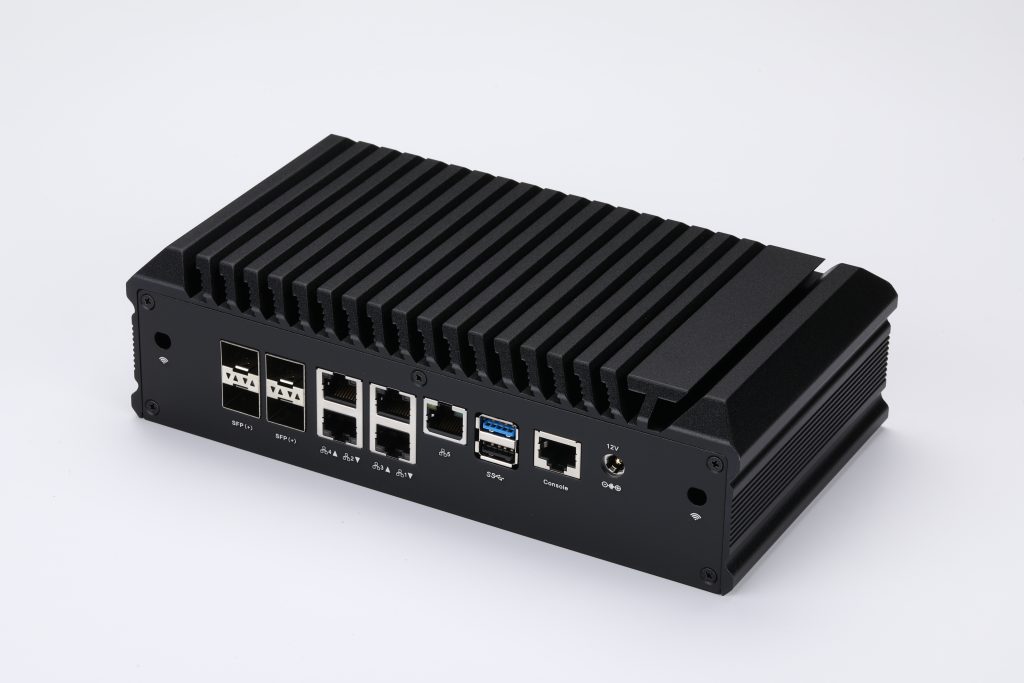
Q20300S9 BIOS Setup Prior to MikroTik RouterOS Installation – Step-by-Step Guide
If you are planning to install and deploy MikroTik RouterOS on the Qotom Q20300S9 industrial network mini PC, specific BIOS configuration adjustments are required to ensure full system compatibility, stable network port recognition, zero packet loss, and normal hardware initialization. Intel VT-d virtualization I/O technology may cause hardware conflict, network adapter detection failure, or system instability when running MikroTik RouterOS, so it is necessary to manually disable the VT-d function in advance before installation.
Exact BIOS Navigation Path for Q20300S9
Power on your Qotom Q20300S9 device, press the DEL key repeatedly during boot to enter the BIOS setup interface. Follow the precise menu path below:
IntelRCSetup -> North Bridge Chipset Configuration -> SSA Config -> VT-d
Locate the VT-d option (Intel Virtualization Technology for Directed I/O). The default factory status is usually Enabled. Change the setting option from Enabled to Disabled to turn off hardware-directed I/O virtualization.
After completing the modification, press the F10 shortcut key to save all BIOS changes and confirm the save operation. The device will automatically restart afterward. Once the reboot is finished, the BIOS configuration will take full effect, and you can proceed with the normal MikroTik RouterOS installation without hardware compatibility errors.
Why Disable VT-d for MikroTik RouterOS?
Disabling VT-d on Qotom Q20300S9 eliminates common issues including unrecognized Ethernet ports, abnormal network card initialization, system boot stuck, and random packet dropping under MikroTik RouterOS. This optimized BIOS setting guarantees stable 24/7 network operation for router, firewall, bandwidth management, and enterprise network deployment scenarios.